Log in
Once you have created an account and validated your email address, you can sign in to access your domains.
Signing in
On the login page, enter the email address and password you chose at registration, then click Go.
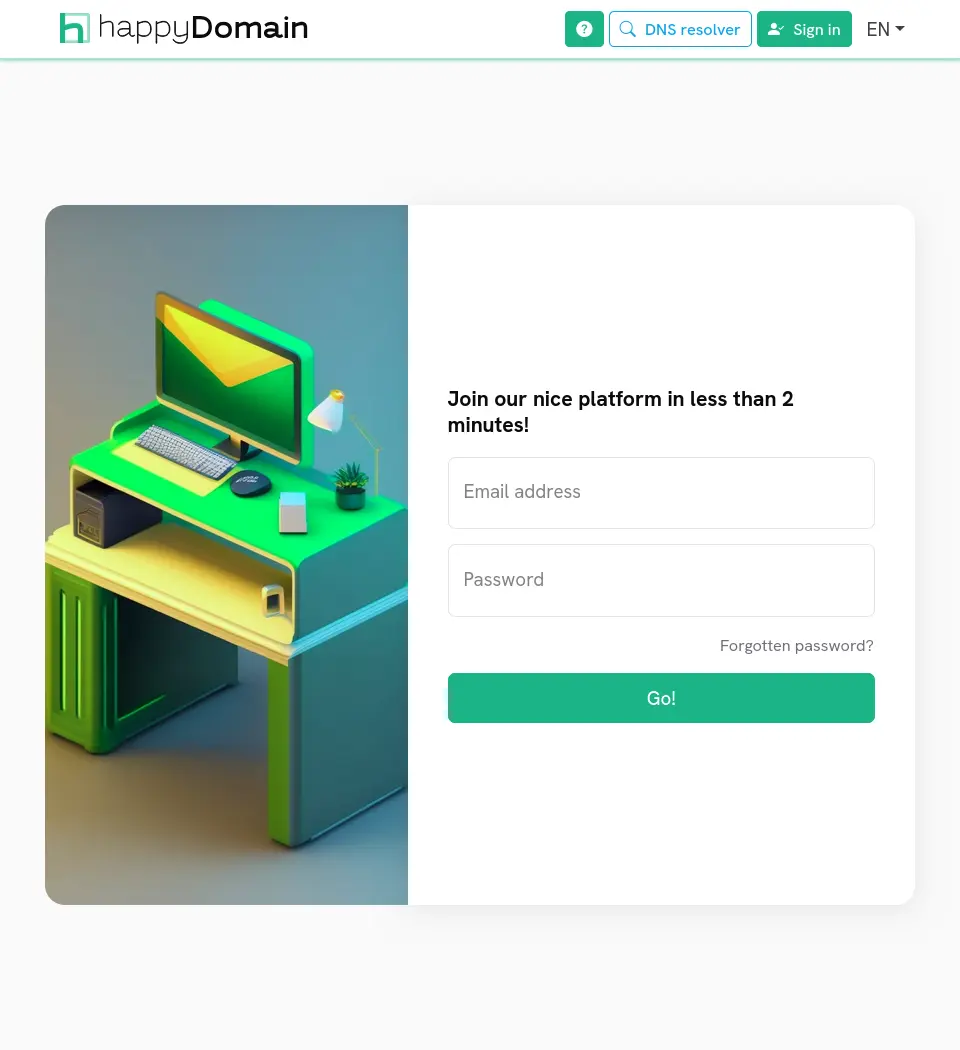
If the credentials are correct, you are taken to your dashboard. If they are not, an error message is displayed: double-check your address and password and try again.
For security reasons, the server may ask you to complete an anti-bot challenge (captcha) after a few failed attempts, or temporarily rate-limit further tries. Wait a moment, then retry.
Signing in with an external provider
When the server is configured for it, an additional button lets you sign in through an external identity provider (for example Google, GitLab, GitHub, Microsoft or Apple). Click it to be redirected to that provider and authenticate there.
Forgotten password
If you no longer remember your password, click Forgotten password? below the login form.
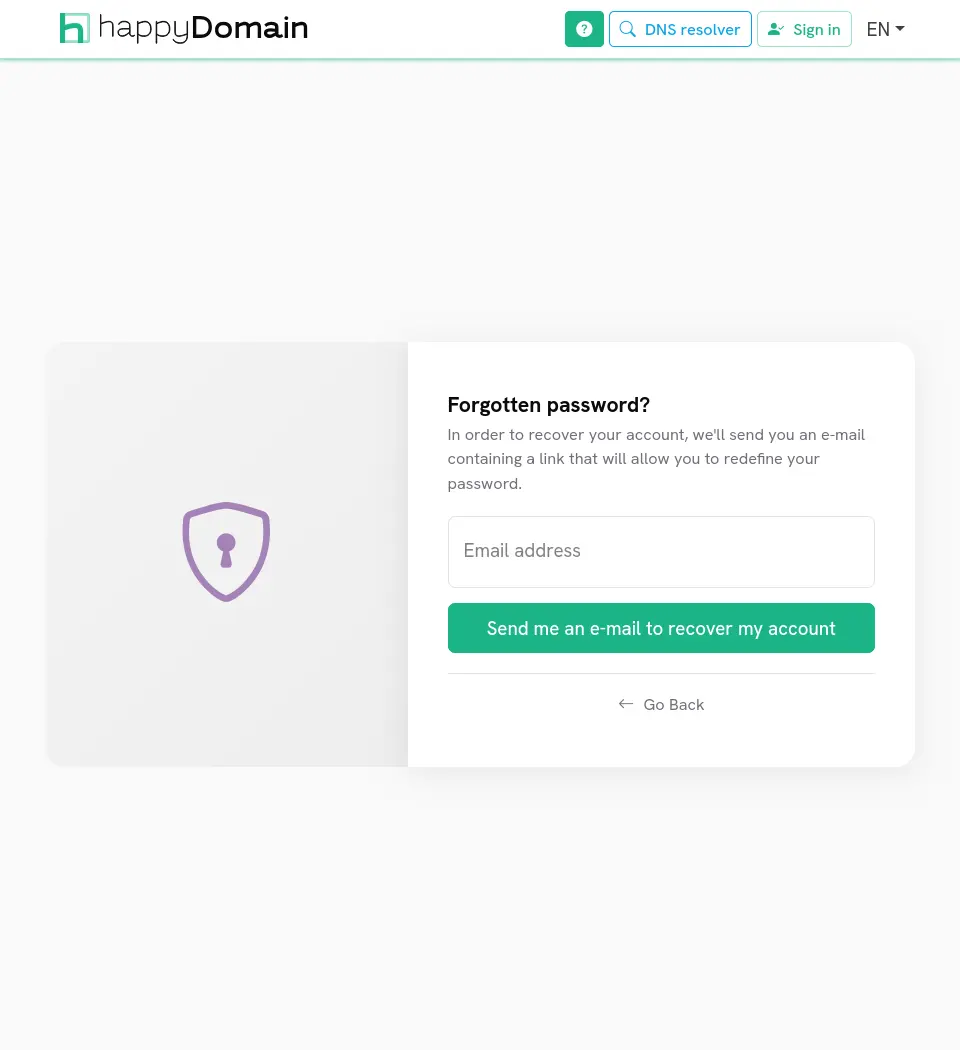
Enter the email address of your account and click Send the recovery link. If an account matches, a message containing a recovery link is sent to that address.
Open the link from your mailbox to reach the account recovery form, where you can set a new password:
- Type your new password (it must meet the same strength requirements as at sign-up).
- Retype it in the confirmation field.
- Click Redefine my password.
Once the password is redefined, you are redirected to the login page to sign in with your new credentials.
On instances that run without a mail service, password recovery is not available: clicking Forgotten password? displays a notice inviting you to contact the server administrator to reset your password.